Your AI Asks Before It Acts
Before anything leaves your accounts - an email, a post, a calendar invite - your AI shows you exactly what it's about to do and waits for your answer.
Your AI can send email from your Gmail, post to your social accounts, and put meetings on your real calendar. That’s the whole point. It’s also exactly the kind of thing you want a say in before it happens.
Now you have one. When your AI is about to change something on an account you’ve connected, it stops and shows you the action first. Reads still just happen - checking your calendar never needed a permission slip. Writes wait for you.
See It Before It Happens
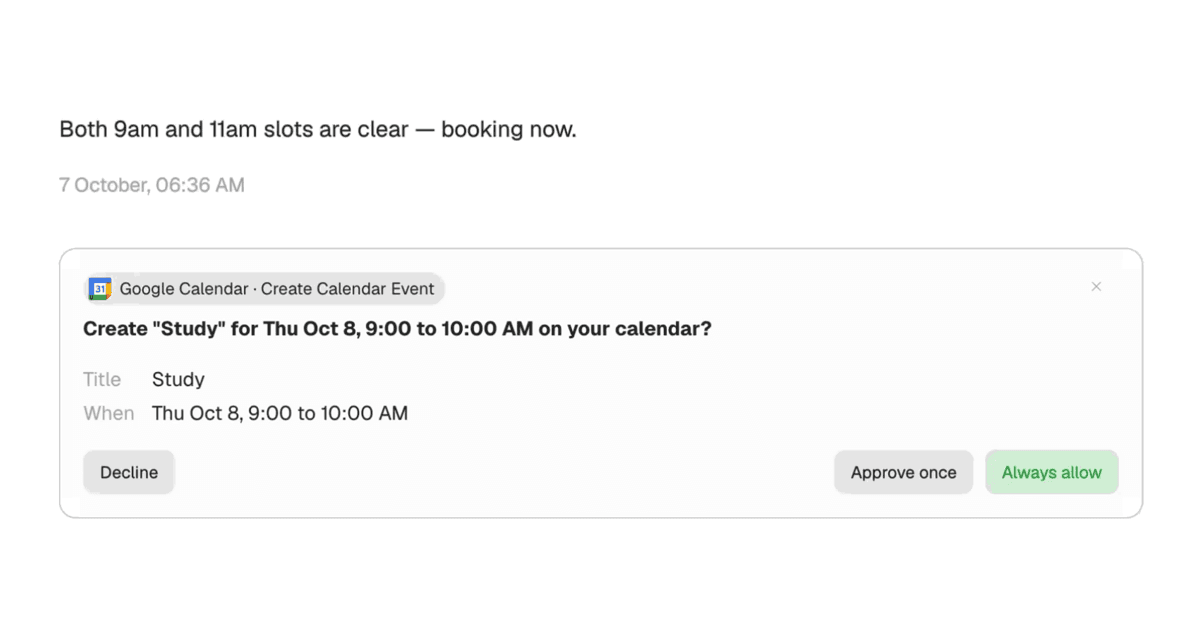
The approval card names the service, names the tool, and lays out the exact details: the event title, the time, who’s invited. The subject line and the body of the email. Not “I’d like to use your calendar” - the actual thing it’s about to do.
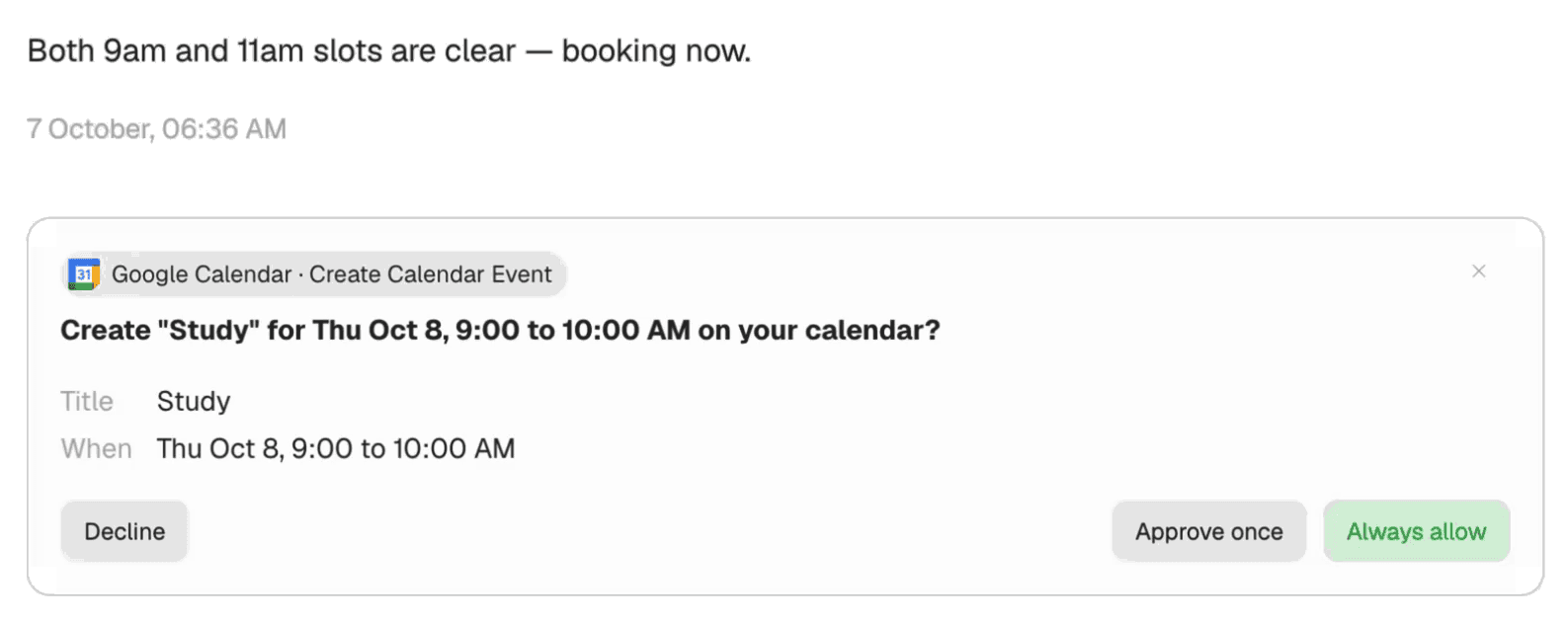
Your answer covers exactly what the card shows. Approve the 3pm coffee and then change your mind to 4pm? That’s a different action, so you get a fresh card. Decline, and nothing happens - your AI says so and moves on, no half-finished attempt to clean up.
Why this matters
Every Tool, Three Settings
Open Connected Services, pick a service, and you’ll see every tool it gives your AI - each one with its own control.
- Always allow: it runs without asking, in every chat
- Needs approval: you get the card first - the default for anything that writes
- Blocked: never attempted, and your AI tells you where to change that if you ask
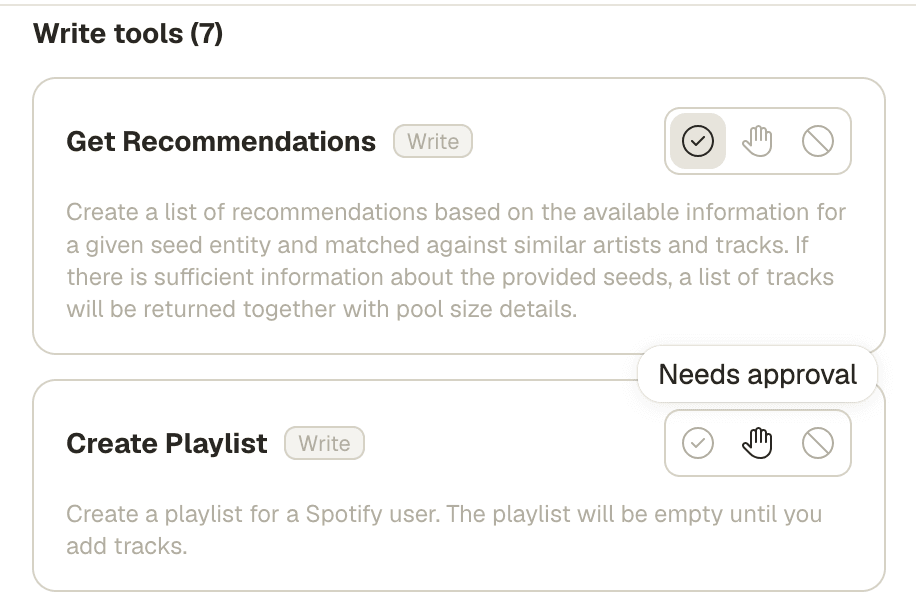
The settings aren’t a suggestion your AI tries to remember - they’re enforced on every single tool call. And they’re as specific as your accounts are: posting to X and posting to LinkedIn are separate switches, so you can let one flow and keep approving the other.
“Always Allow” Means Ask Me Once
Some things deserve a look every time. Some really don’t. When a card shows up for something you’d happily let run forever, hit Always allow - the action runs, and that tool never asks again, in any chat.
It’s not a hidden toggle you have to hunt for later, either. The setting lands right in Connected Services next to everything else, and you can walk it back to needs-approval or blocked any time.
Nothing Changes Until You Say So
If your AI has been posting your updates or managing your calendar for months, it still will - every service you connected before today is set to always allow, so nothing you’ve built starts nagging you. The controls are there when you want them. Services you connect from now on start at needs-approval for writes, and you’ll see their tools and starting settings the moment you connect.
Two more things you’d want to know. Scheduled tasks you set up keep running without cards - you approved the work when you created them. And in group chats, your connected accounts answer only to you: if someone else asks your AI to post as you, it declines and says that’s yours to approve.
Keep Reading
Your AI Has Questions
When your AI is missing a detail, it asks you with a quick question card instead of guessing.
Read MoreNew FeatureChoose Which Tools Your AI Uses in Each Chat
Chat settings now have a tools section. Turn on what this conversation needs, turn off what it doesn't.
Read MoreFeature GuideYour Tools, Right Where You Type
Tap the Connected Services icons next to the chat box to see what your AI can use.
Read MoreReady for an AI That Checks First?
Connect your accounts and give your AI something real to do. You'll see every action before it happens - and you decide what never needs asking again.