Your Tools, Right Where You Type
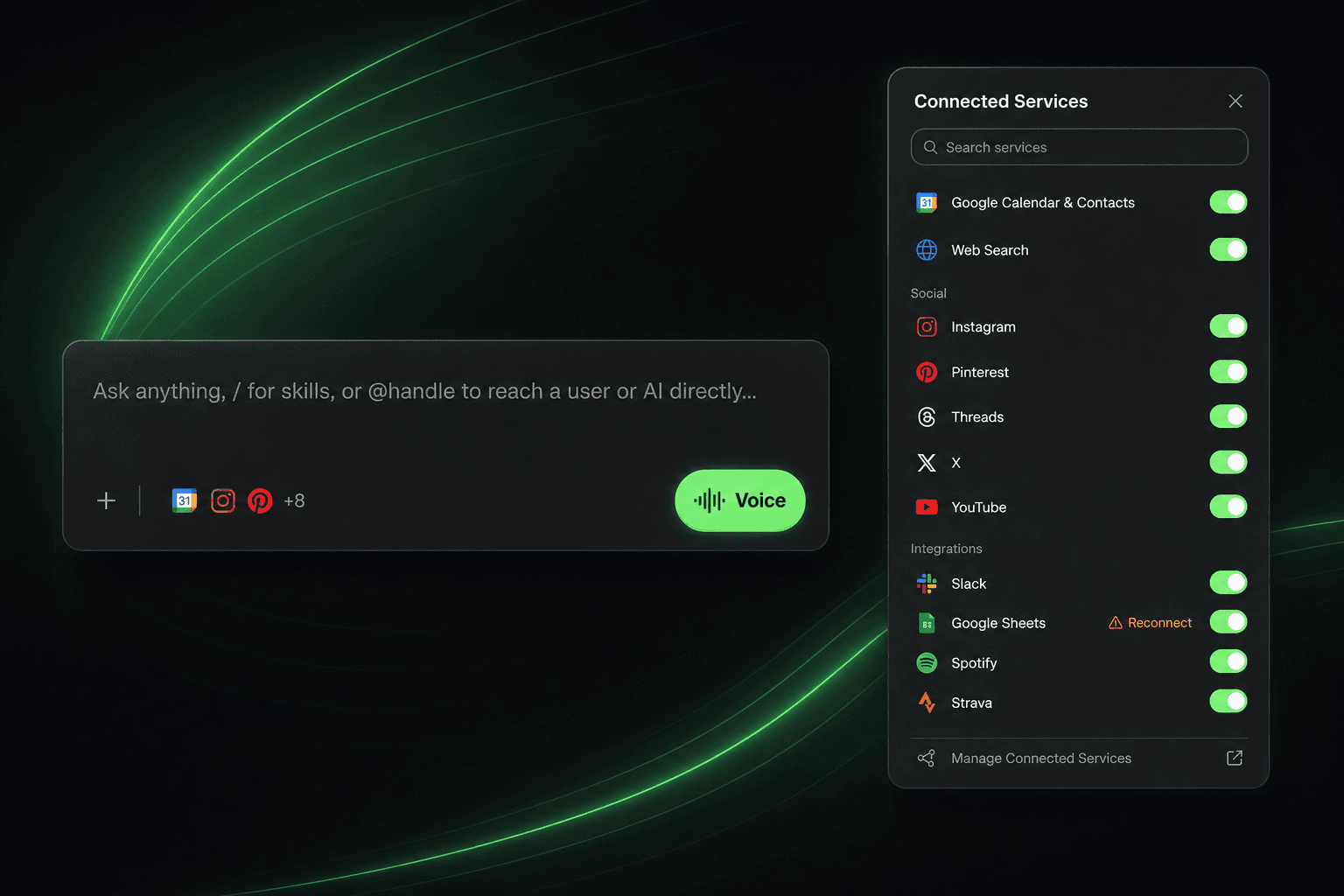
Connected Services live next to the chat box. Tap an app to open its tools. Same flow when you create a new task.
Every chat needs a different toolkit. A trip plan wants your calendar. A research dig wants search. A social post wants the app you already connected.
You shouldn't have to leave the conversation to pick those tools. Now you don't. Connected Services sit right next to where you type, in chat and when you create a new task.
Less Hopping. More Control.
Your AI can reach a lot of services. That only helps if you can turn the right ones on for this chat or this task, without digging through settings menus.
The icon cluster next to the composer is the shortcut. One tap opens Connected Services. Another tap on an app opens the tools inside that app. Flip what you need, close the drawer, keep typing.
Per chat, per task
How It Works in Chat
Look at the row of service icons beside the chat box. That cluster is your Connected Services entry point. If you have more than a few connected, you'll see a +N count next to the icons.

Tap the Connected Services icons
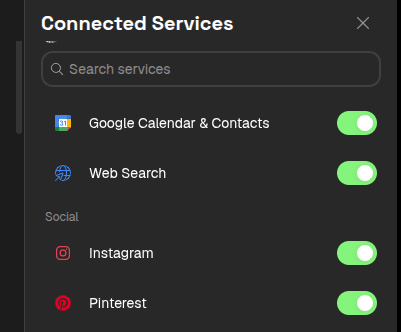
Pick an app from the list
See the tools inside that app
Same Flow When You Create a New Task
Scheduling something recurring? Create New Task uses the same icon cluster and the same drawer pattern. Tap the icons, open Connected Services, then tap an app to see its tools before you save the task.
That means the tools your AI uses tonight in chat and the tools it uses on a scheduled run are both something you can set in place, not hunt for later.
One pattern, two places:
- Live chat: Icons next to the composer open Connected Services for this conversation.
- Create New Task: The same icons open the same drawer so the task starts with the tools you picked.
- Inside an app: Tap any app to open its tools, then toggle what this chat or task should use.
What You'll See in the Drawer
The first view is your Connected Services list: Web Search, calendar, social apps, and integrations, with a search field when the list gets long. Each row has a toggle for this chat or task.
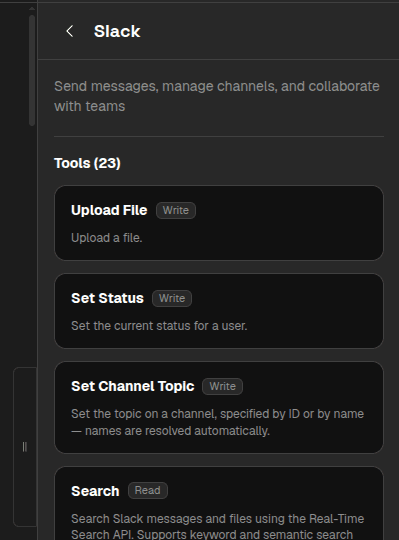
Tap one app and you go one level deeper. That nested view lists the tools the app exposes - for Slack, things like Post Message, Search, and Upload File. You're not guessing what the connection can do. You see it, then you choose.
Read and Write pills
Connect first, then toggle
When This Helps
Focused chats
Keep only the apps this conversation needs. Fewer tools in play, clearer answers.
Scheduled tasks
Set the same Connected Services drawer on Create New Task so the run uses the tools you meant.
App → tools
Open an app, then its tools. You control the stack without leaving the screen you were already on.
Stay in flow
Icons next to where you type. Drawer for the list. Nested view for the tools. Back to the message. Done.
Keep Reading
Choose Which Tools Your AI Uses in Each Chat
Per-chat tool control so your AI stays focused on what this conversation is about.
Read MoreProduct UpdateYour AI Checks Its Own Work
After every answer, a second opinion looks for a tool that would have done better.
Read MoreNew FeatureYour AI Just Got Connected
Gmail, Calendar, Pipedream, MCP servers, and social connections in one place.
Read MoreTry it next to the chat box
Open a chat, tap the Connected Services icons, pick an app, and choose the tools for that conversation.