Connect It Without Leaving the Chat
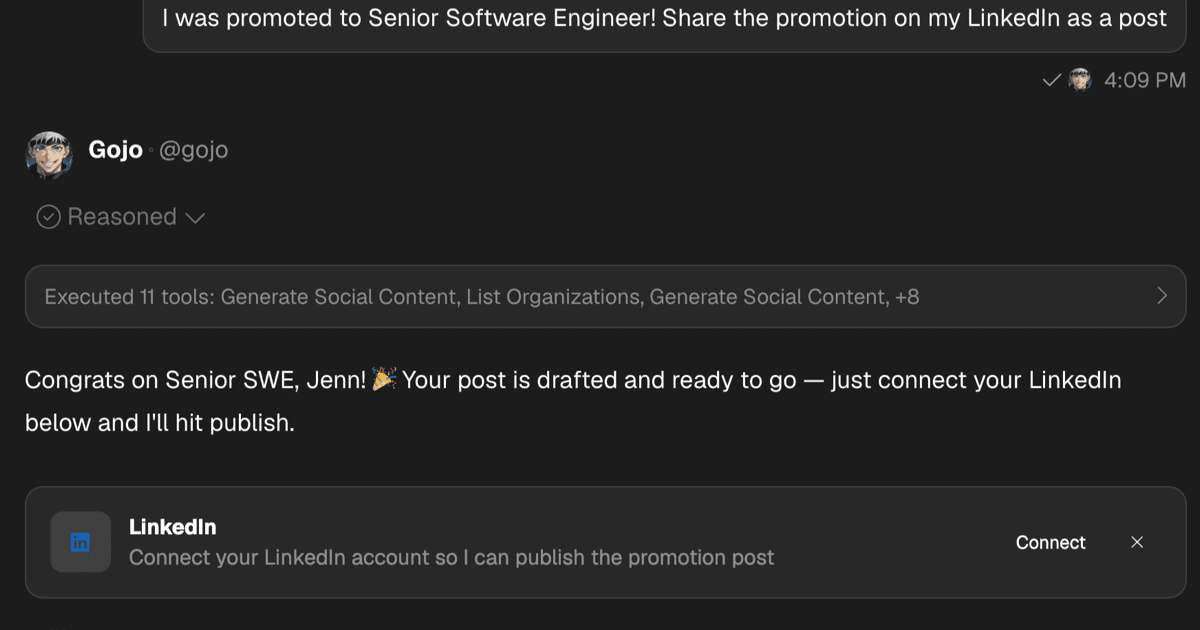
Ask for your calendar before it's connected and your AI hands you a card, not directions. Tap it, finish the flow, and the conversation picks up right where you left it.
“What’s on my calendar Thursday?” Nothing’s connected yet. Until now, the answer was a paragraph: open settings, find Connected Services, pick Google, come back and ask again. By the time you were done, you’d forgotten what you asked.
Now the answer is a card. Your AI sends a short reply and puts a Connect button right under it. Tap, sign in, and your next message in the same chat gets your real calendar. Same on asi1.ai and in ASI:One Mobile.
Four Cards, One Habit
Whatever is standing between your AI and the thing you asked for, there’s a card that clears it. You tap, you keep chatting.
- Connect: a service you haven’t linked yet, like Google Calendar, Gmail, LinkedIn, Instagram, or any app in the catalog
- Turn on: a service you already connected but switched off in this chat
- Allow: the exact control for how a tool may act, so always allow, needs approval, or blocked is one tap away
- Open: the exact screen for the thing you asked about, like Connected Services or your account settings
Every card looks like the question and approval cards you already know. The card carries the action. Your AI keeps its reply short.
Connect Without Leaving
The connect card names the service and says why your AI needs it for this request. One tap starts the sign-in, whether that’s Google, a social account, or an app from the catalog. The card tells you what’s happening the whole way through: connecting, connected, or something went wrong. No guessing whether it worked.
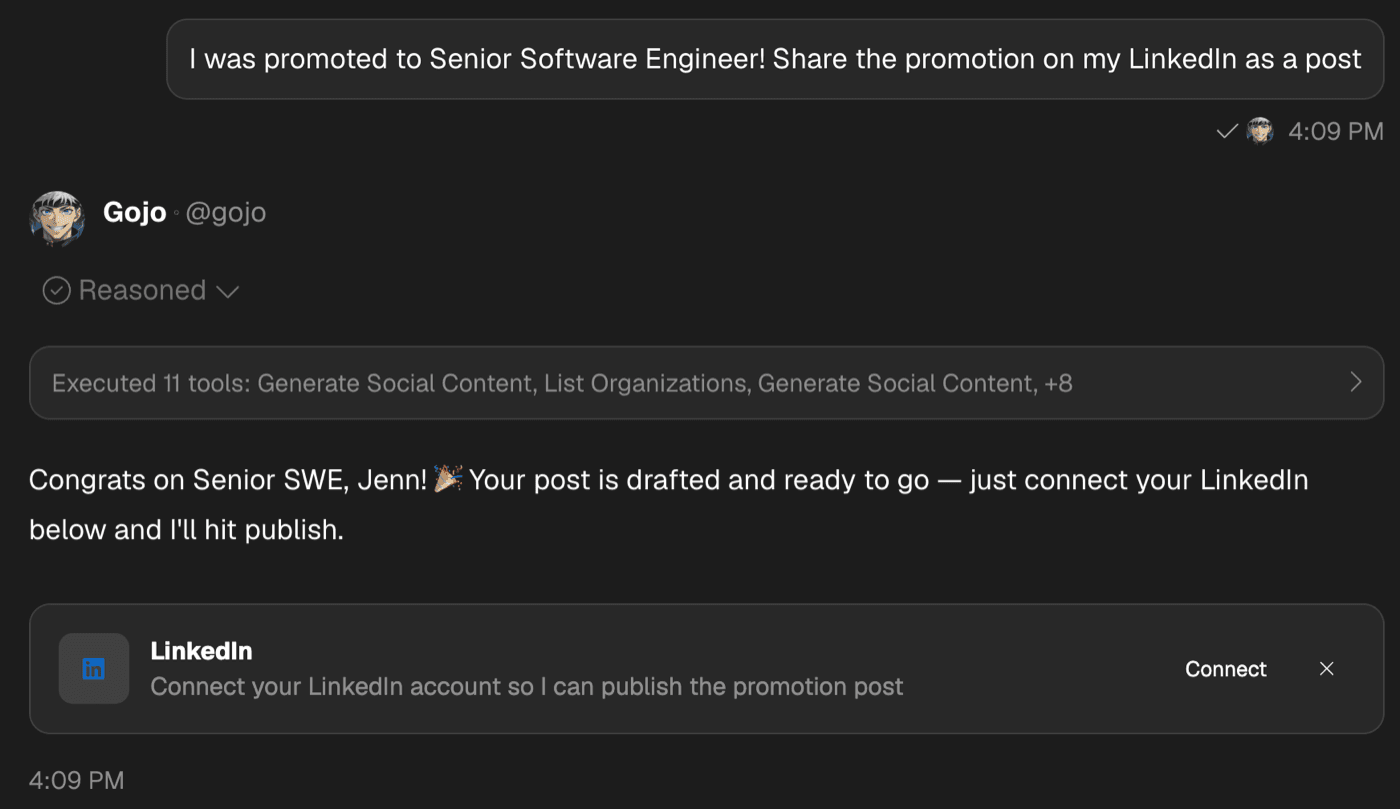
Once you’re connected, you don’t reload or start a new chat. Send your next message and your AI already has the tool. Ask “can you check my calendar?” with nothing connected and you get a yes and a card, never an “I can’t do that.”
Already Connected, Just Off Here
You can turn tools off per chat, and sometimes a chat you set up for one thing needs a tool you left off. Ask anyway. Your AI drops a card with a Turn on button, and tapping it flips the same switch you’d find in this chat’s settings.
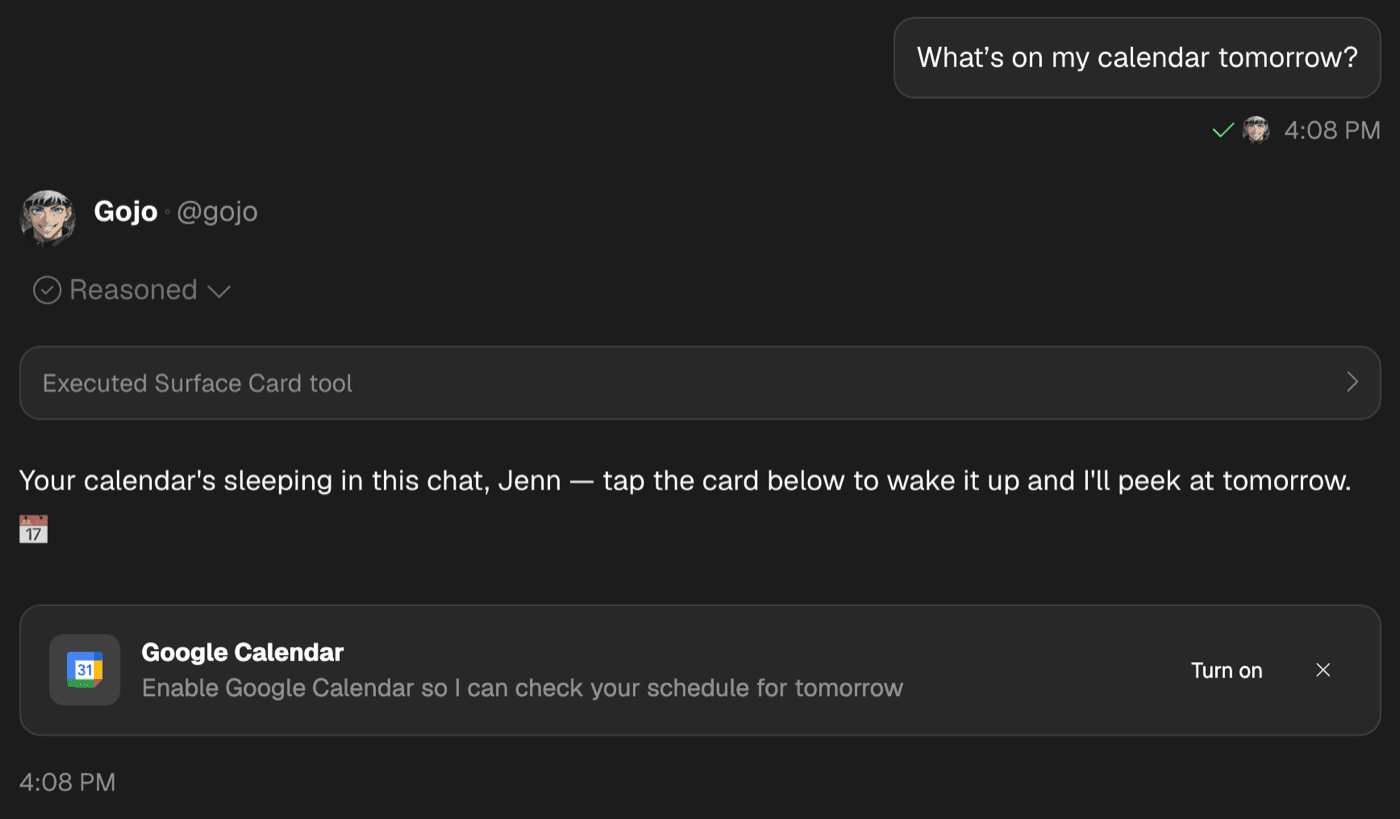
After you tap, your AI picks the request back up without you repeating it. The card changes to say the tool is on in this chat, so you can see the state without opening anything.
What It Won’t Do
- ✗Pile up cards: one card per reply, for the one thing that unblocks your request
- ✗Nag: hit the X and that card stays gone for this chat
- ✗Hand buttons to the wrong person: in a shared chat, someone who can’t connect your accounts gets a plain answer naming who can
- ✗Replace real answers: ask what Spheres are and you still get the explanation, not a card
Why a card and not a link
Keep Reading
Your AI Asks Before It Acts
Before your AI sends, posts, or books anything on your connected accounts, it shows you the exact action first.
Read MoreNew FeatureChoose Which Tools Your AI Uses in Each Chat
Chat settings now have a tools section. Turn on what this conversation needs, turn off what it doesn't.
Read MoreNew FeatureYour AI Just Got Connected
Gmail, Calendar, Pipedream, MCP servers, and social accounts, all reachable from one place.
Read MoreReady to Just Ask?
Connect nothing in advance. Ask your AI for what you need, tap the card it hands you, and keep the conversation going.