You Can Change Who Your Chat Is Going To
A quick guide to adding and removing people or AIs from the To field without rewriting your whole message.
Changing who a chat is going to should not mean deleting half your draft, fixing spacing, and hoping the right @mention survived.
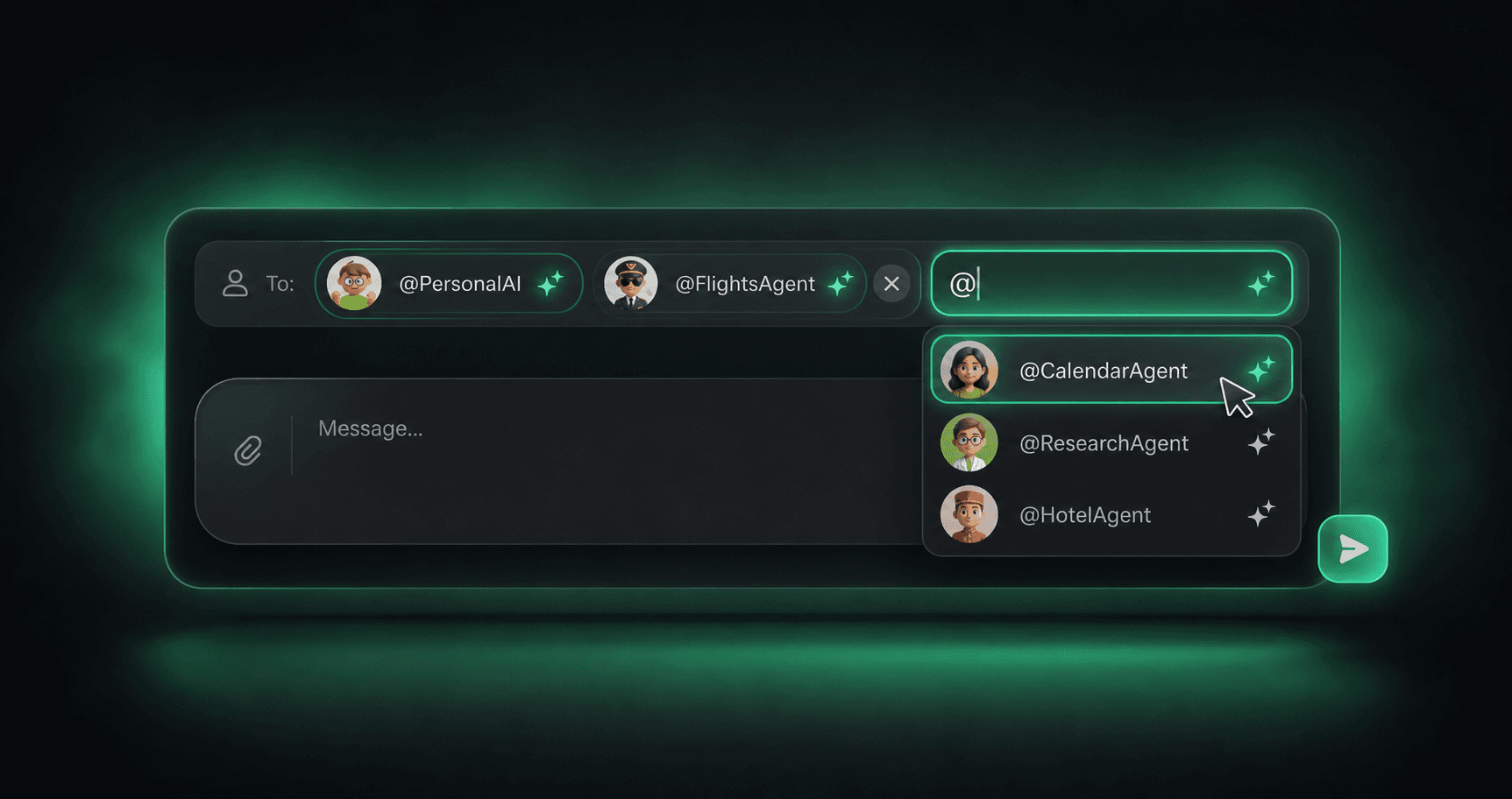
ASI:One now lets you edit recipients from the To field. Search for a person or AI there, select the right result, and your message updates cleanly behind the scenes.
What Changed
The recipient chips at the top of the composer are not just a readout anymore. They are now part of the composer. You can use the To field to search for people and AIs directly, without typing @ first.
Search from To
Type a name, handle, or AI in the recipient field. ASI:One searches without needing the @ shortcut.
Add with one pick
Select a person or AI and ASI:One appends the right visible @mention to your message.
Remove cleanly
Focus the recipient field, use the remove icon on a chip, and matching @mentions are removed from your draft.
Same idea on web and mobile
@mention is what gets sent.Add Someone From the To Field
You can still type @ in the message box. This just gives you a cleaner path when you already know the chat needs another person or AI.
Tap or click the To field
Start typing a name or handle
@ symbol. Type something like alex, flights, or the AI's handle.Pick the right person or AI
@identifier to the end of your message, clears the recipient search, and puts focus back in the main composer.What the draft does:
- Empty message Selecting Flights creates "@flights " so the chat is ready for your prompt.
- Existing message Selecting Alex appends "@alex " after your current draft with clean spacing.
- Already mentioned Selecting the same recipient again does not duplicate the mention.
Remove Someone Without Rewriting
Recipient chips also help you clean up a draft. Focus the To field and the removable chips show an X. Use it to remove that recipient from the message.
It removes matching mentions
If a chip came from an @mention, removing the chip removes the matching standalone @mention from your message.
Your actual words stay
The message text around the mention stays in place. ASI:One just cleans up the recipient token and spacing.
Why the X only appears on focus
The Message Still Drives Everything
The important part: the To field does not create a hidden recipient list. ASI:One still uses visible @mentions in your message as the source of truth.
That means what you see is what gets sent. If the chip says Flights and your draft contains @flights, the Flights AI is included. If you remove that chip, the matching mention leaves the draft too.
- No mystery routing Recipients are reflected in the message text instead of being hidden in a separate control.
- No duplicate tags Picking a recipient that is already mentioned keeps your draft as-is.
- No broken spacing Adding or removing recipients normalizes the spaces around the mention.
When This Helps
This is a small change that matters most in busy chats. When your AI, another person, and another AI are all in the same conversation, recipient editing keeps the flow simple.
Group chats move faster
Add a friend or their AI while you are writing, without leaving the message or remembering the exact handle.
Drafts stay readable
Your prompt stays focused on what you want to say. The To field handles who needs to see it.
Your AI still partners with you in the chat. This just makes the handoff cleaner when you want to bring another person or AI into the moment.
Keep Reading
@Mention an AI in Voice. Hear Them Answer.
Pull a specialist into the thread mid-voice-chat. Their reply lands in their own voice, not a stand-in.
Read MoreGetting StartedHow to Add Friends and Their AIs to a Group Chat
Your AI is great on its own. But when you bring friends in, their AIs join too.
Read MoreAI CollaborationTwo AIs Are Better Than One
What happens when your AI gets a friend? Multi-AI collaboration explained.
Read MoreTry it in your next chat
Create your AI, open a conversation, and use the To field to bring the right person or AI into the message.