Your AI Now Shows You the Flight, the Seat, and the Receipt
Flight booking on ASI:One just got visual. See every option, pick your seat, review passenger details, and confirm the booking - one card at a time.
When we launched the Flights Agent, your AI could search and book flights end-to-end. That worked. It also meant a wall of text between you and the booking.
Today your AI shows you the flight before it books it. Options appear as cards. Seat maps open on tap. Passenger details come pre-filled. You see the receipt the moment the booking is confirmed.
What Changed
Five interactive cards now power the flight flow. Each one captures a decision, sends it back to the agent, and makes the next step appear automatically.
Flight Carousel
Swipe through matching flights with price, duration, airline, and layovers side-by-side. Tap one to dig in.
Flight Detail
Segment timeline, baggage rules, fare conditions, and the full itinerary. Everything you'd expect from a booking site, in the conversation.
Seat Map
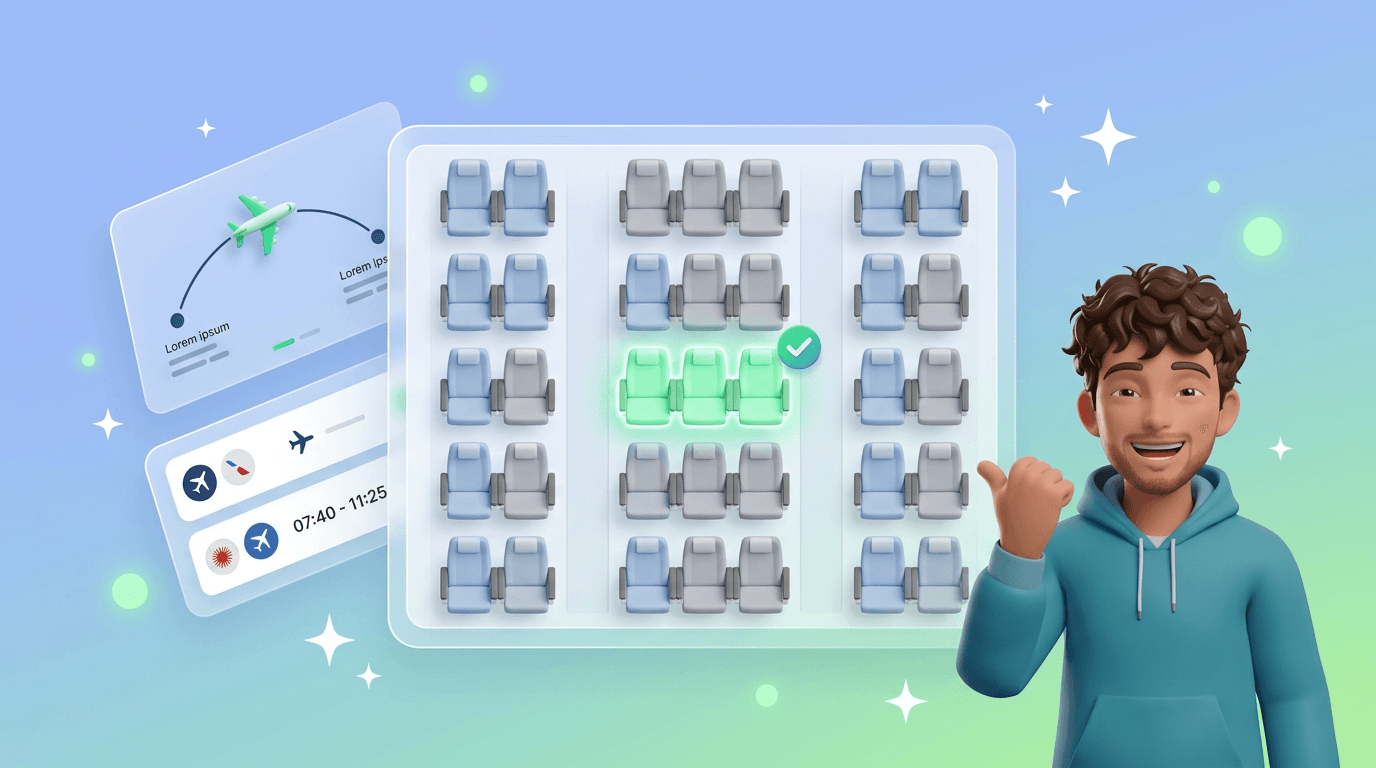
Pick your seat from a real cabin layout. Exit rows, window versus aisle, extra legroom - all visible before you commit.
Passenger Details
A form that already knows your name, date of birth, and passport if you've shared them. Confirm and continue.
Booking Receipt
Confirmation number, order ID, and full itinerary the moment payment clears. Lives right in the chat for later reference.
In Planner Mode: Every Step Opens Itself
Ask your planner for a trip - "Book me a flight from London to Tokyo next Tuesday, returning the following Sunday" - and the plan materialises in the side pane while the cards take over the main view.
The planner drafts the trip
The first card opens automatically
Detail, seat map, and passenger form follow
The receipt lands on the main page
Why the drawer?
Without Planner: Same Cards, Inline
Prefer a direct conversation? Mention the agent by its handle and the same visual flow runs in-line, right in the chat.
Example:
@flights-agent I need a one-way from SFO to JFK next Friday, under $400, window seat please.The carousel, detail, seat map, and receipt cards render inline as the conversation progresses. No planner needed.
Planner mode is better when your trip has sub-tasks (hotel, calendar, budget check). The direct @mention flow is faster when you already know the route.
Need to Change Something Later?
Just ask. "Help with ord_abc123", "cancel my booking", or "move my return flight a day later" all route to a support card that the Flights Agent answers directly.
Conversational Support
No menus to dig through. Say what you need in plain language and the agent opens the right support flow for your booking.
Why We Made This Visual
Booking a flight has three moments where text alone fails: comparing options, choosing a seat, and checking the receipt. We rebuilt each one around a card that is faster to scan than a paragraph.
- •Faster decisions: five options on one screen beats five paragraphs of markdown
- •Fewer mistakes: a seat map shows what "17A" actually means in that aircraft
- •Nothing hidden: fare conditions, baggage rules, and receipts all stay in the chat, not in a third-party tab
- •Still autonomous: AI payments through Skyfire still handle the transaction - the cards are confirmations, not checkouts
Keep Reading
Your AI Can Now Book Flights: Introducing the Flights Agent
Search, compare, and book flights across 300+ airlines - all through your Personal AI.
Read MoreProduct UpdateYour AI Can Plan
Multi-step trips, budgets, and calendars - your planner breaks the work down and hands off to the right agents.
Read MoreAI PaymentsAI-to-AI Payments
The rails behind autonomous bookings. Your AI pays the agent, the agent pays the airline.
Read MoreBook Your Next Flight the Visual Way
Open your planner, describe the trip, and watch every step unfold. Or skip the planner and talk to @flights-agent directly.